How-To
Build a Private Network Stack: OPNsense, AdGuard, Unbound
Learn to build a private network stack with OPNsense, AdGuard, and Unbound for enhanced privacy and control.
Quick answer:
Executive Summary
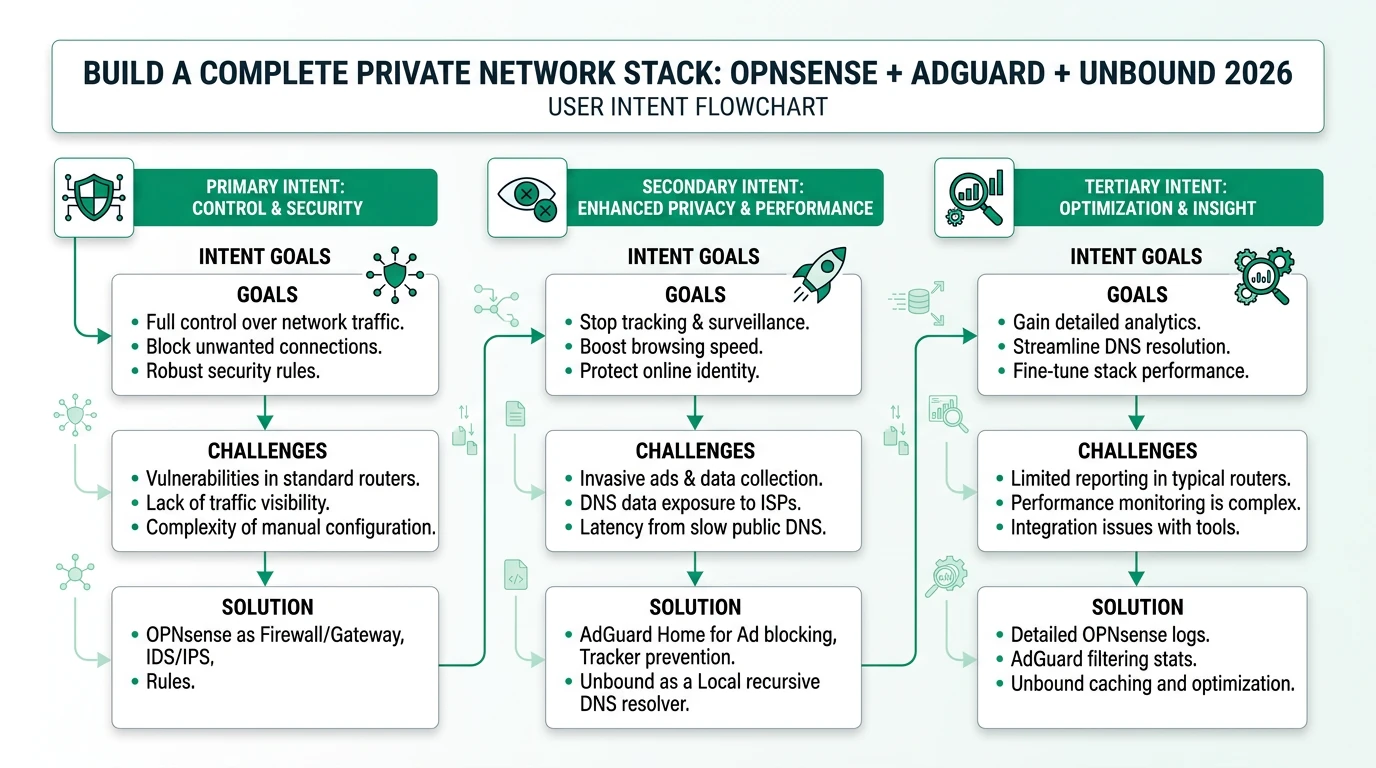
In the quest for enhanced privacy and control over network traffic, building a private network stack using OPNsense, AdGuard Home, and Unbound offers a compelling solution. This setup replaces ISP-provided DNS services with a self-hosted alternative, allowing for comprehensive DNS filtering and ad-blocking across all devices on a network. By leveraging the strengths of each component—OPNsense as a robust firewall and router, AdGuard Home for DNS-level ad-blocking, and Unbound as a recursive DNS resolver—users can achieve a high degree of privacy and security.
The primary audience for this guide includes technical homelab enthusiasts and privacy-conscious network administrators who prioritize control over convenience. This setup is particularly appealing for those experiencing ISP DNS manipulation or seeking to eliminate ads at the network level. While the configuration process requires a moderate to high level of technical expertise, the benefits of a self-hosted DNS infrastructure are significant, offering both privacy and performance advantages.
Bottom Line: Building a private network stack with OPNsense, AdGuard, and Unbound provides robust privacy and control, ideal for users seeking to replace ISP DNS with a self-hosted solution.
Understanding the Components: OPNsense, AdGuard, and Unbound
To effectively build a private network stack, it’s crucial to understand the roles of OPNsense, AdGuard Home, and Unbound. Each component serves a distinct purpose, contributing to the overall functionality and security of the network.
OPNsense is an open-source firewall and routing platform based on FreeBSD. It acts as the foundation of the network stack, providing essential services such as DHCP and DNS forwarding. OPNsense is highly configurable, allowing users to set up complex network rules and manage traffic efficiently. Its flexibility makes it an ideal choice for users looking to replace commercial routers with a more customizable solution.
AdGuard Home functions as a DNS-level ad-blocker and content filter. By intercepting DNS queries before they reach the resolver, AdGuard Home can block ads and trackers across all devices on the network. This approach eliminates the need for per-device ad-blocking software, simplifying management and ensuring consistent filtering. AdGuard Home is particularly effective in environments where privacy is a priority, as it prevents third-party tracking and reduces unwanted content.
Unbound is a validating, recursive, caching DNS resolver. It provides DNSSEC support, ensuring that DNS queries are cryptographically validated to prevent spoofing attacks. Unbound’s recursive capabilities allow it to resolve DNS queries directly, rather than relying on external DNS providers. This not only enhances privacy but also improves performance by caching frequently accessed domains.
Together, these components create a layered architecture where OPNsense routes traffic, AdGuard Home filters DNS queries, and Unbound resolves them. This setup offers a high degree of control over network traffic, making it an attractive option for privacy-conscious users.
Configuring OPNsense for Optimal Performance
Setting up OPNsense is the first step in building your private network stack. This process involves installing OPNsense on dedicated hardware or a virtual machine and configuring it to serve as the network’s primary router and firewall.
Begin by selecting appropriate hardware for OPNsense. While OPNsense can run on a variety of platforms, it’s recommended to use a dedicated x86 box or a mini-PC with sufficient processing power and network interfaces. This ensures that OPNsense can handle the network’s traffic load without performance bottlenecks. Once the hardware is ready, download the latest OPNsense image and install it on the device.
After installation, configure OPNsense’s basic settings, including network interfaces, DHCP server, and DNS forwarding. It’s crucial to disable the option “Allow DNS server list to be overridden by DHCP on WAN” to prevent the ISP from overriding your DNS settings. This ensures that all DNS queries are processed through your configured stack.
Next, set up firewall rules to manage traffic flow. OPNsense’s intuitive interface allows you to create rules that control inbound and outbound traffic, enhancing security. For instance, you can restrict SSH access to the LAN interface only, reducing the risk of unauthorized access from external networks.
Finally, configure VLANs if your network requires segmentation. This is particularly useful for separating IoT devices from critical network resources, minimizing security risks. OPNsense’s VLAN support allows for flexible network design, accommodating various use cases.
Integrating AdGuard Home for DNS Filtering
With OPNsense configured, the next step is to integrate AdGuard Home for DNS filtering. AdGuard Home acts as the network’s primary DNS server, intercepting and filtering DNS queries to block ads and trackers.
Start by installing AdGuard Home on a device within your network. This can be the same hardware running OPNsense or a separate machine, depending on your network’s architecture. Once installed, configure AdGuard Home to listen on port 53 for DNS queries. If port 53 is already in use, reassign it to a different port, such as 8080 for the web GUI and 53 for DNS.
AdGuard Home’s web interface provides a user-friendly way to manage DNS filtering. You can customize blocklists, add custom filtering rules, and monitor DNS query logs to ensure effective filtering. It’s also possible to integrate AdGuard Home with upstream DNS servers, such as Unbound or external providers, for enhanced privacy and performance.
To prevent DNS bypass, configure OPNsense to redirect all DNS traffic to AdGuard Home. This involves creating a NAT port forwarding rule that captures all port 53 traffic and forwards it to AdGuard Home. This setup ensures that all devices on the network use AdGuard Home for DNS resolution, regardless of their individual settings.
AdGuard Home’s integration with OPNsense provides a seamless DNS filtering solution, offering network-wide ad-blocking without the need for per-device configuration. This approach not only simplifies management but also enhances privacy by keeping DNS queries within your network.
Setting Up Unbound for Recursive DNS Resolution
Unbound serves as the final component in the private network stack, providing recursive DNS resolution and DNSSEC validation. Configuring Unbound involves setting it up as AdGuard Home’s upstream DNS server, ensuring that all DNS queries are resolved securely and efficiently.
Begin by installing Unbound on the same device running OPNsense or a separate machine. Configure Unbound to listen on a non-standard port, such as 5335, to avoid conflicts with AdGuard Home. This requires modifying Unbound’s configuration file to specify the listening port and enable DNSSEC support.
Once Unbound is configured, set AdGuard Home to use Unbound as its upstream DNS server. This involves specifying Unbound’s IP address and port in AdGuard Home’s settings. By doing so, AdGuard Home forwards all DNS queries to Unbound for resolution, benefiting from Unbound’s caching and validation capabilities.
Unbound’s recursive resolution improves performance by caching frequently accessed domains, reducing query latency. Additionally, DNSSEC validation ensures that DNS responses are authentic, protecting against spoofing attacks. This combination of features makes Unbound an essential component of a secure and private network stack.
To further enhance privacy, consider enabling DNS-over-HTTPS (DoH) or DNSCrypt for upstream queries. This encrypts DNS traffic between Unbound and external DNS providers, preventing ISP snooping and ensuring end-to-end privacy.
Troubleshooting Common Issues and Port Conflicts
Building a private network stack with OPNsense, AdGuard Home, and Unbound can present challenges, particularly when it comes to port conflicts and configuration issues. Understanding how to troubleshoot these common problems is essential for a successful deployment.
One of the most frequent issues is port conflicts, especially with port 53, which is commonly used by DNS services. If multiple services attempt to bind to the same port, conflicts arise, preventing the services from functioning correctly. To resolve this, ensure that each service listens on a unique port. For example, configure Unbound to use port 5335 or 5353, while AdGuard Home uses port 53 for DNS queries.
Another common issue is DNS bypass, where devices attempt to use external DNS servers instead of the configured stack. This can be mitigated by setting up NAT port forwarding rules in OPNsense, redirecting all DNS traffic to AdGuard Home. This ensures that all devices on the network use the designated DNS server, maintaining consistent filtering and privacy.
Configuration errors can also lead to connectivity issues. Double-check firewall rules, DHCP settings, and DNS configurations to ensure they align with your network’s requirements. OPNsense’s logging features can help identify misconfigurations by providing detailed insights into network traffic and rule enforcement.
If performance issues arise, such as slow DNS resolution or high CPU usage, consider optimizing Unbound’s caching settings and reviewing AdGuard Home’s blocklists. Reducing the number of blocklists or adjusting caching parameters can improve performance without compromising privacy.
Evaluating the Cost and Scalability of a Self-Hosted Stack
When considering a self-hosted network stack, it’s important to evaluate both the cost and scalability of the solution. While the initial investment may be higher than using ISP-provided equipment, the long-term benefits of enhanced privacy and control can outweigh these costs.
The direct costs of building a private network stack include hardware expenses, such as purchasing a dedicated x86 box or mini-PC for OPNsense. Depending on performance requirements, hardware costs can range from $200 to $1,500. Additionally, consider the cost of network interface cards if VLAN segmentation is needed.
Power consumption is another factor to consider. Running a dedicated device 24/7 incurs electricity costs, estimated at $20 to $100 per year, depending on the device’s power usage and local electricity rates. Over a five-year period, these costs can add up, but they remain competitive compared to commercial DNS filtering solutions.
Scalability is a key consideration for users with growing networks. While the OPNsense, AdGuard Home, and Unbound stack is suitable for small to medium-sized networks, it may not scale efficiently to support thousands of devices. For larger deployments, commercial alternatives like ZenArmor or Zscaler may offer better scalability and support.
Ultimately, the decision to build a self-hosted stack should weigh the benefits of privacy and control against the costs of hardware, power, and maintenance. For users with technical expertise and a focus on privacy, the investment can provide significant returns in terms of network security and performance.
Checklist for Building Your Private Network Stack
Checklist for Building Your Private Network Stack
- Select appropriate hardware for OPNsense installation.
- Install OPNsense and configure basic network settings.
- Disable DHCP override to prevent ISP DNS manipulation.
- Set up AdGuard Home for DNS filtering and configure blocklists.
- Create NAT port forwarding rules to prevent DNS bypass.
- Install Unbound and configure it as AdGuard Home's upstream DNS server.
- Enable DNSSEC in Unbound for secure DNS resolution.
- Monitor network traffic and DNS query logs for performance and privacy.
- Regularly update OPNsense, AdGuard Home, and Unbound for security patches.
Frequently Asked Questions
Frequently Asked Questions
What is the primary benefit of using a private network stack?
A private network stack enhances privacy by replacing ISP DNS with self-hosted solutions, offering control over DNS filtering and ad-blocking at the network level.
Can I use this setup with IPv6?
While possible, IPv6 configuration is not well-documented and may require additional testing to ensure DNS filtering works correctly.
How do I prevent devices from bypassing my DNS settings?
Use NAT port forwarding rules in OPNsense to redirect all DNS traffic to AdGuard Home, ensuring consistent filtering across all devices.
What hardware is recommended for OPNsense?
A dedicated x86 box or mini-PC with sufficient processing power and network interfaces is recommended for optimal performance.
Is this setup suitable for large networks?
This setup is ideal for small to medium-sized networks. For larger deployments, consider commercial solutions like ZenArmor or Zscaler for better scalability.
Primary Sources Table
| # | Source | URL | Type | Relevance | Date |
|---|---|---|---|---|---|
| 1 | Paul Sorensen | paulsorensen.io | Blog/Guide | Complete setup guide with NAT port forwarding | 2024–2025 |
| 2 | OPNsense Forum | forum.opnsense.org | Forum Discussion | Port conflict resolution, Unbound + AdGuard configuration | 2025 |
| 3 | Windgate | windgate.net | Blog/Guide | Unbound integration, enterprise scalability notes | 2024–2025 |
| 4 | Server Builds Forum | forums.serverbuilds.net | Forum/Guide | Detailed port assignments, DNSSEC configuration | 2024–2025 |
| 5 | Home Network Guy | homenetworkguy.com | Blog/Guide | VLAN and IPv6 configuration context | 2024–2025 |
| 6 | YouTube (Unnamed) | YouTube | Video Tutorial | DNS configuration, DHCP override prevention | 2024–2025 |
| 7 | YouTube (Unnamed) | YouTube | Video Tutorial | AdGuard Home installation walkthrough | 2024–2025 |
| 8 | XDA Developers | xda-developers.com | Article | ISP router replacement context | 2024–2025 |
| 9 | LogicWeb | logicweb.com | Guide | DIY router hardware options | 2024–2025 |
Conclusion
Building a private network stack with OPNsense, AdGuard Home, and Unbound offers a robust solution for users seeking enhanced privacy and control over their network traffic. By replacing ISP-provided DNS services with a self-hosted alternative, users can achieve comprehensive DNS filtering and ad-blocking across all devices. While the setup process requires technical expertise and an investment of time, the benefits of increased privacy and performance make it a worthwhile endeavor for privacy-conscious individuals.